Quest 1: Get WellSpent on your Mac
Every adventure starts with the gear. Here’s yours.
Before you start: Apple’s email inviting you to test WellSpent Budget, and a Mac with macOS 14 or later. Sign in with the same account you use in the App Store on this Mac.
-
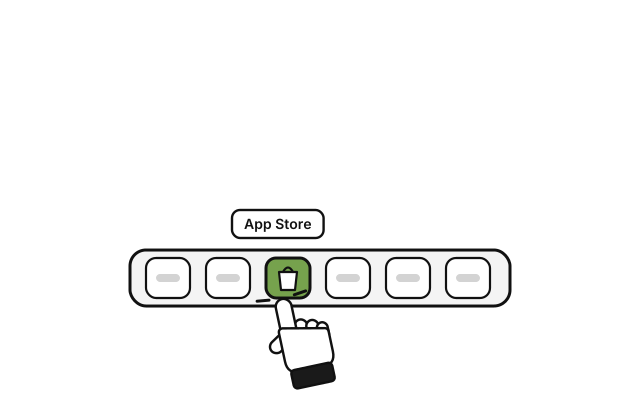 Open the App Store app on your Mac.
 -
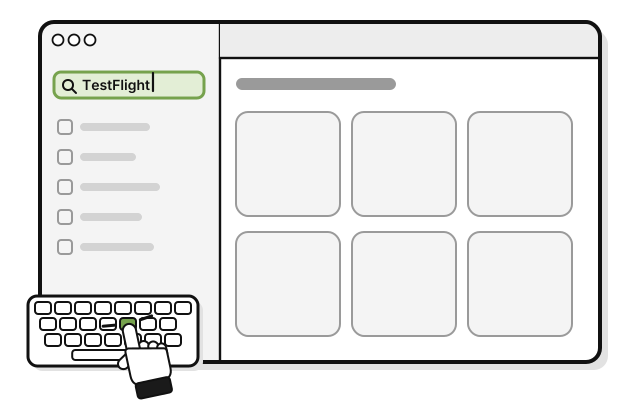 Search for the TestFlight app.
 -
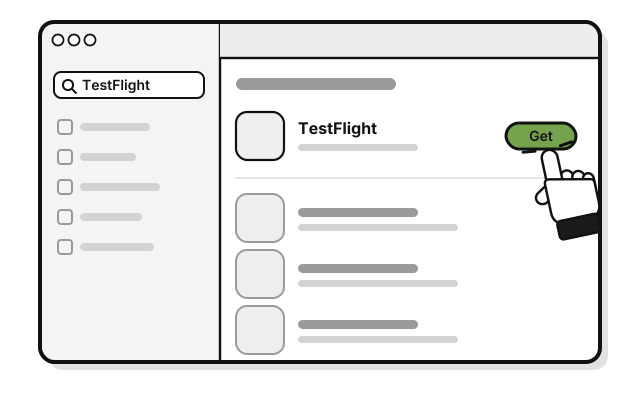 Click Get. If it changes to Install, click that too.
 -
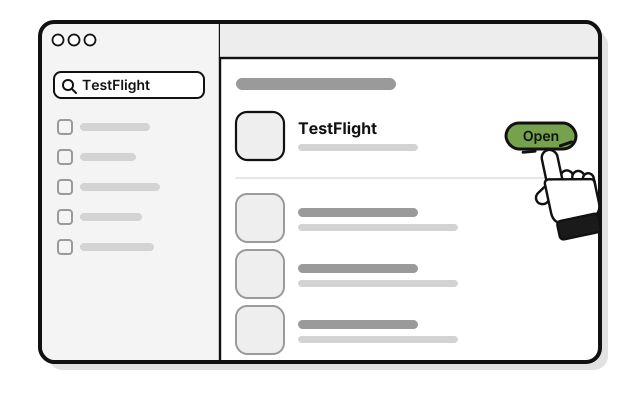 Click Open.
 -
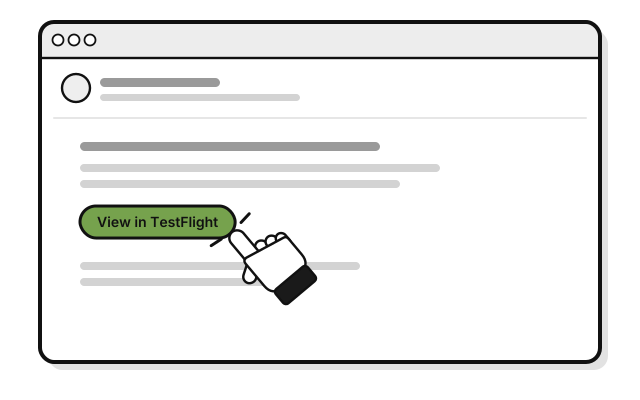 In Apple’s email, click View in TestFlight.
 -
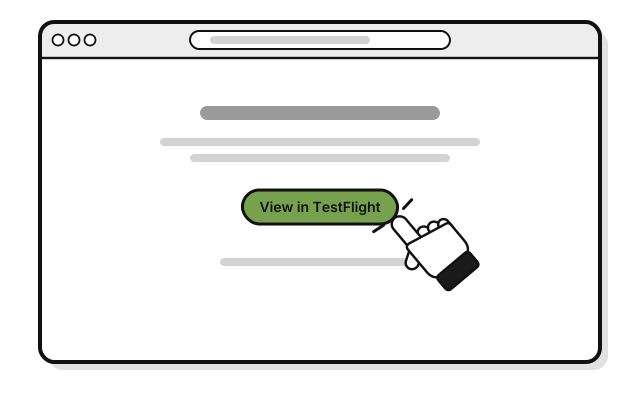 On the web page, click View in TestFlight. If Safari asks to open TestFlight, click Allow.
 -
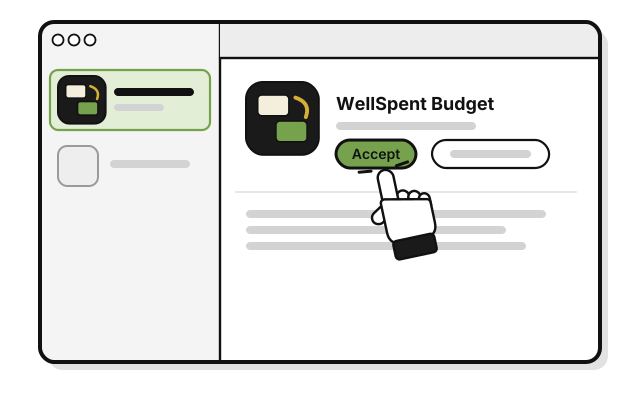 Click Accept.
 -
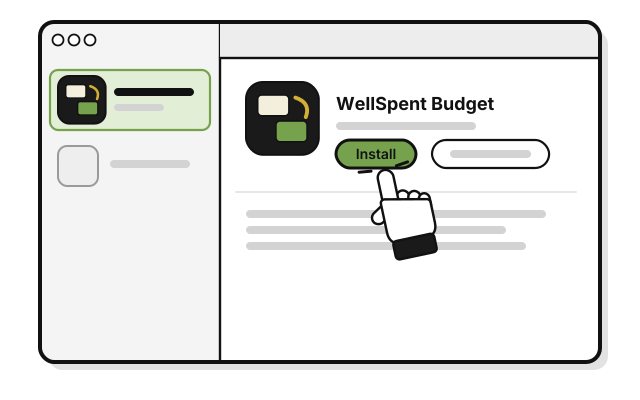 Click Install.
 -
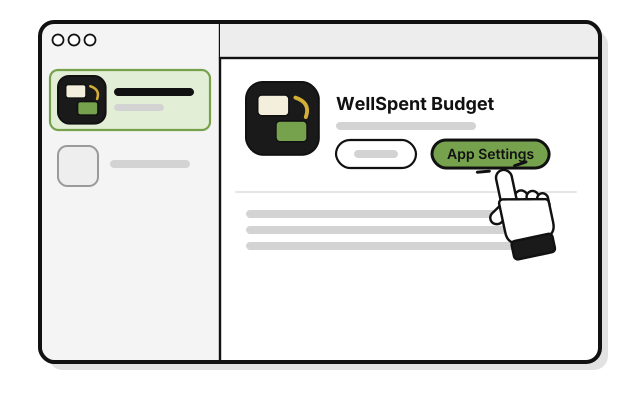 Click App Settings.
 -
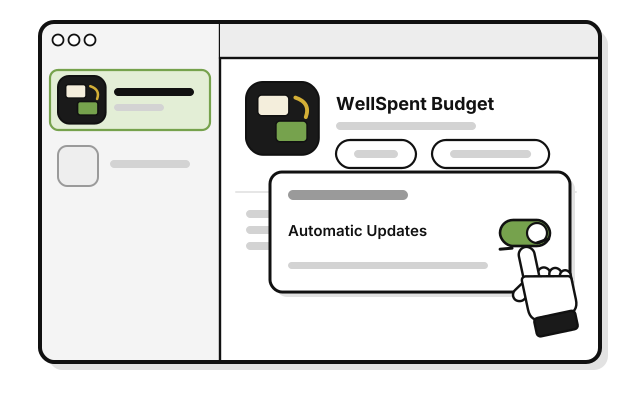 Turn on Automatic Updates, so new versions install on their own.
 -
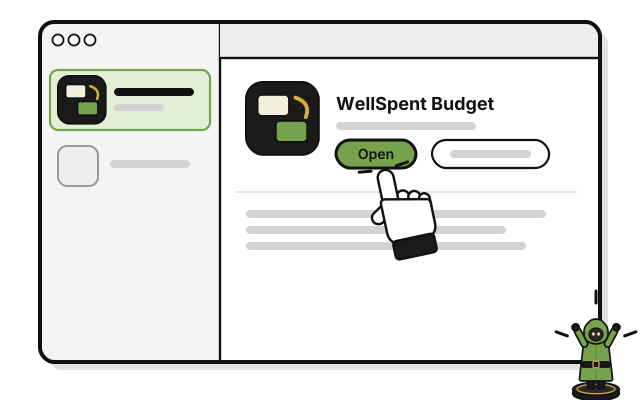 Click Open.
You see WellSpent, with two sample groups, HOUSEHOLD and SIDE BUSINESS. They’re made up, so you can look around.
If it doesn’t work
- No email from Apple: check your spam or junk folder, and search your mail for “TestFlight”.
- You see Update or Open, not Accept: you’ve tested WellSpent before. Click Update, then Open.
- No Install button: Apple shows Install only when this version works on your Mac. WellSpent needs macOS 14 or later.
- WellSpent won’t open: each test version works for up to 90 days. Open TestFlight, and click Update.
- Your Mac shows another warning: don’t change any settings. Write to dev@wellspent.space, with a picture of the warning.